How Inventory & Auto-Delivery Work
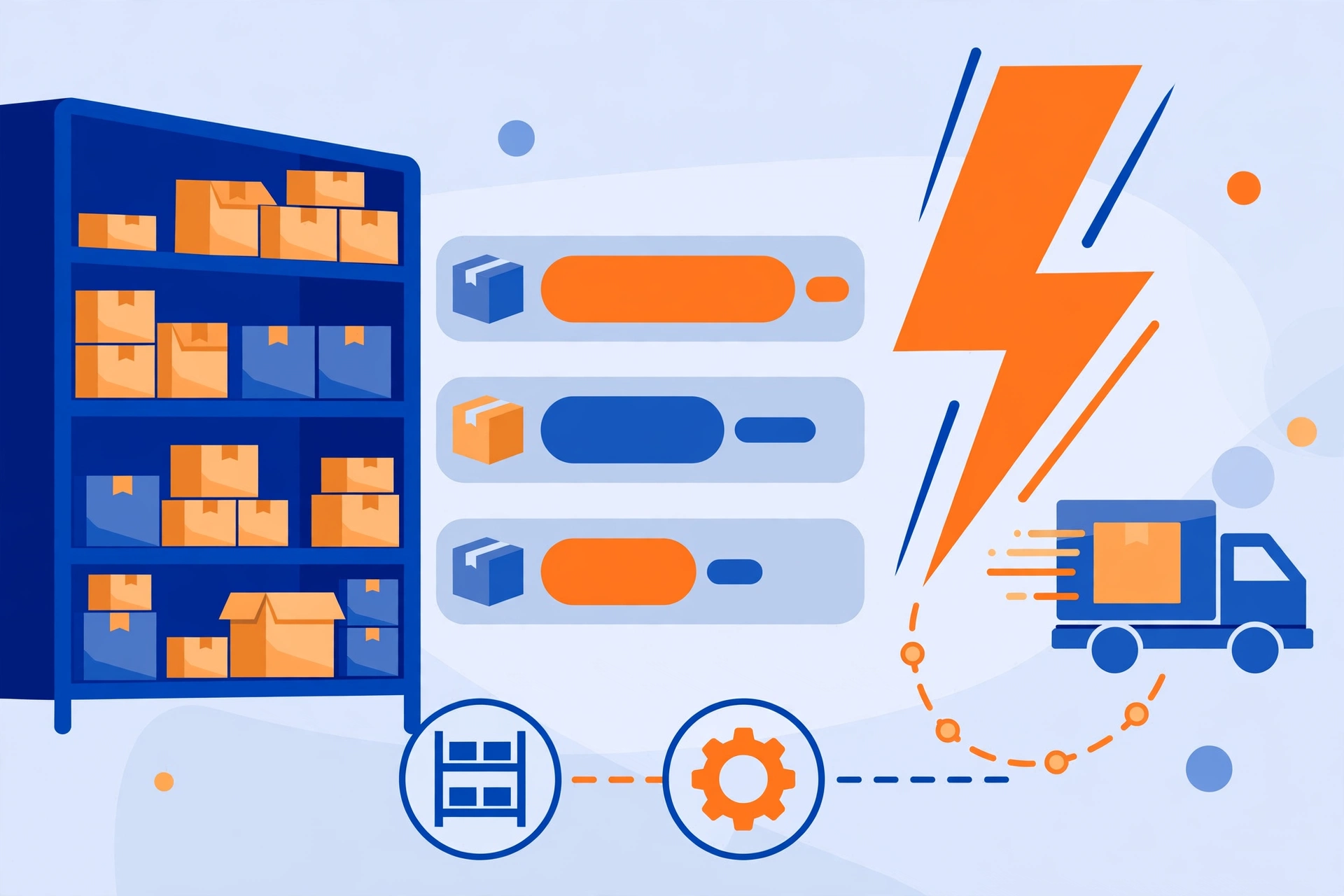
Fast delivery wins sales. On AccLocker you can deliver products instantly and automatically — even while you sleep — or handle delivery manually when a personal touch is needed. Here is how inventory and both delivery modes work, and how to run them without losing sales to stockouts, stale credentials, or slow fulfilment.
How inventory works
For auto-delivery products, you preload your stock: the actual account credentials or keys buyers will receive. Each unit in your inventory corresponds to one sale. When a buyer purchases:
- One unit is reserved and sent instantly — no action needed from you.
- Your stock count drops by the quantity sold.
- When stock hits zero, the product shows as out of stock automatically.
Think of each stock line as a single sealed envelope. Once it is handed to a buyer, it cannot be handed to anyone else, so a clean one-to-one match between stock lines and orders is what keeps deliveries accurate. You can restock at any time from the inventory page. The dashboard warns you when variants run low so you never miss sales.
Setting up auto-delivery
- Open the product and go to the Inventory tab.
- Add stock lines — one per unit (for example,
email:passwordpairs or license keys). - Save. From that moment, every order is fulfilled in seconds, 24/7.
Before you save a large batch, test the format with a single line first. A misplaced separator, an extra space, or a missing field can turn an instant delivery into a support ticket, and the buyer will judge the whole store on that first login attempt. Auto-delivery is ideal for Gmail accounts, game keys, subscriptions, and any product where the deliverable is a fixed credential or code.
When to use manual delivery
Some products need a human step — custom-created accounts, region-specific setups, or orders that require verification first. With manual delivery:
- You receive a Telegram and email alert the moment an order arrives.
- Open the order, prepare the deliverable, and click "Mark as delivered" with a delivery note.
- The buyer is notified instantly and the warranty clock starts.
Use the delivery note well. A short, clear note — what was delivered, how to sign in, and what to do if anything looks wrong — prevents most follow-up questions. Tip: deliver manual orders fast. Slow delivery is the most common reason buyers leave poor reviews.
What happens when you run out of stock
Out-of-stock products stop selling — unless you enable pre-orders. With pre-orders, buyers can pay upfront for a product you will restock soon. When you add new inventory, pre-orders are fulfilled automatically, oldest first. Cancelling a pre-order refunds the buyer in full.
Inventory best practices
- Keep buffer stock: restock before you hit zero, especially on weekends.
- Verify before uploading: every credential you add should be tested and working.
- Rotate stale stock: remove units that may have expired or been used.
- Watch the low-stock alerts on your dashboard — they exist for a reason.
Inventory checklist
- Each stock line corresponds to exactly one sale, and variants are stocked separately.
- New stock is format-checked and test-logged before it goes live.
- Low-stock alerts are checked daily, with buffer stock on best sellers.
- Stale or expired units are removed rather than left to fail at delivery.
- Pre-orders are only enabled when restock is realistic and planned.
One honest note for buyers and sellers alike: buying and selling accounts can violate the terms of the underlying platforms, and the risks include suspension and seller recovery action. Nothing about fast delivery changes that, so describe what you sell accurately and never promise that an account is completely safe from platform action.